Mortgage communication gets scattered across texts, emails, and calls, creating more follow-ups for brokers and less visibility for clients.
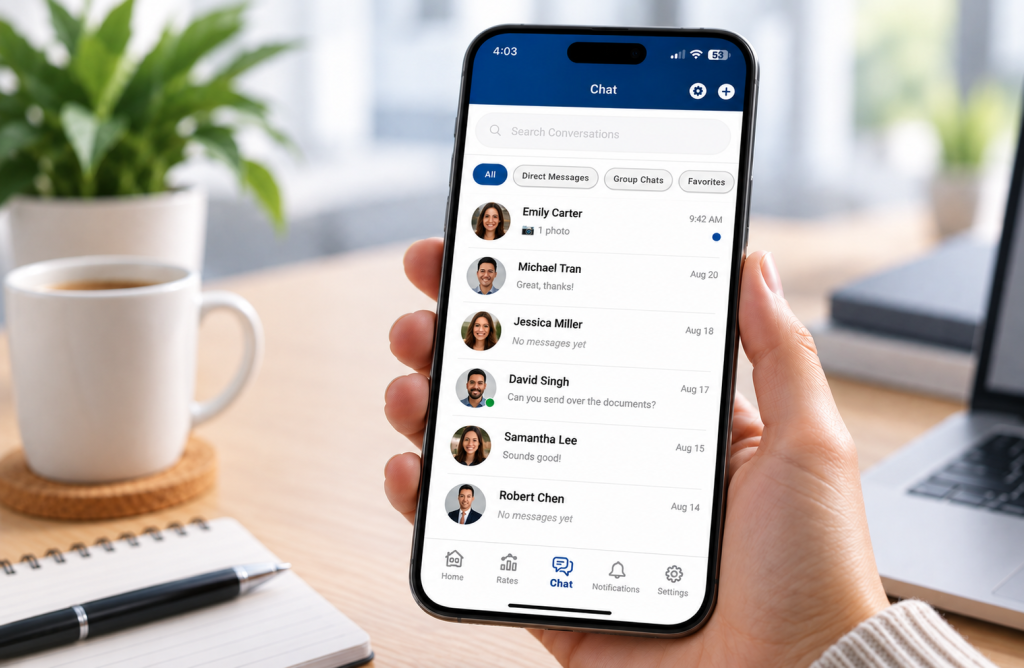
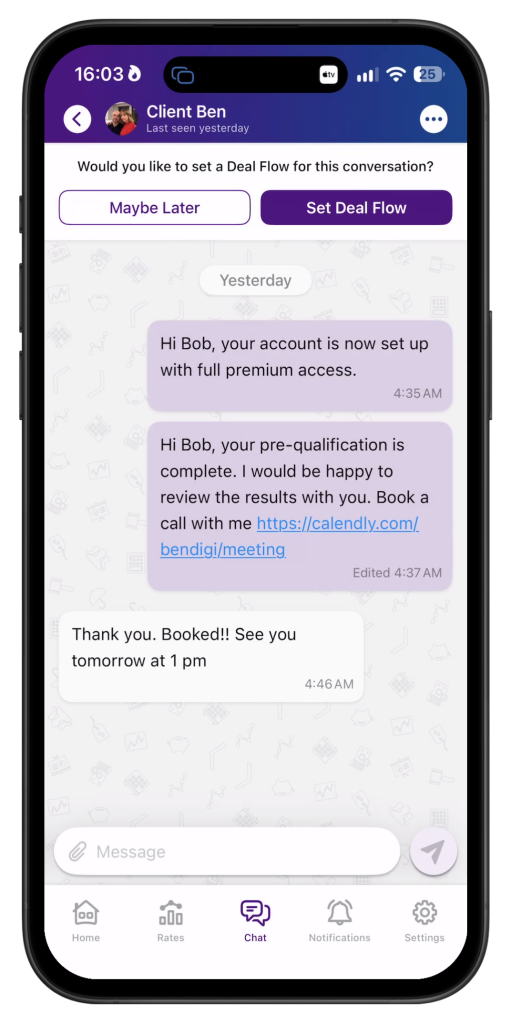
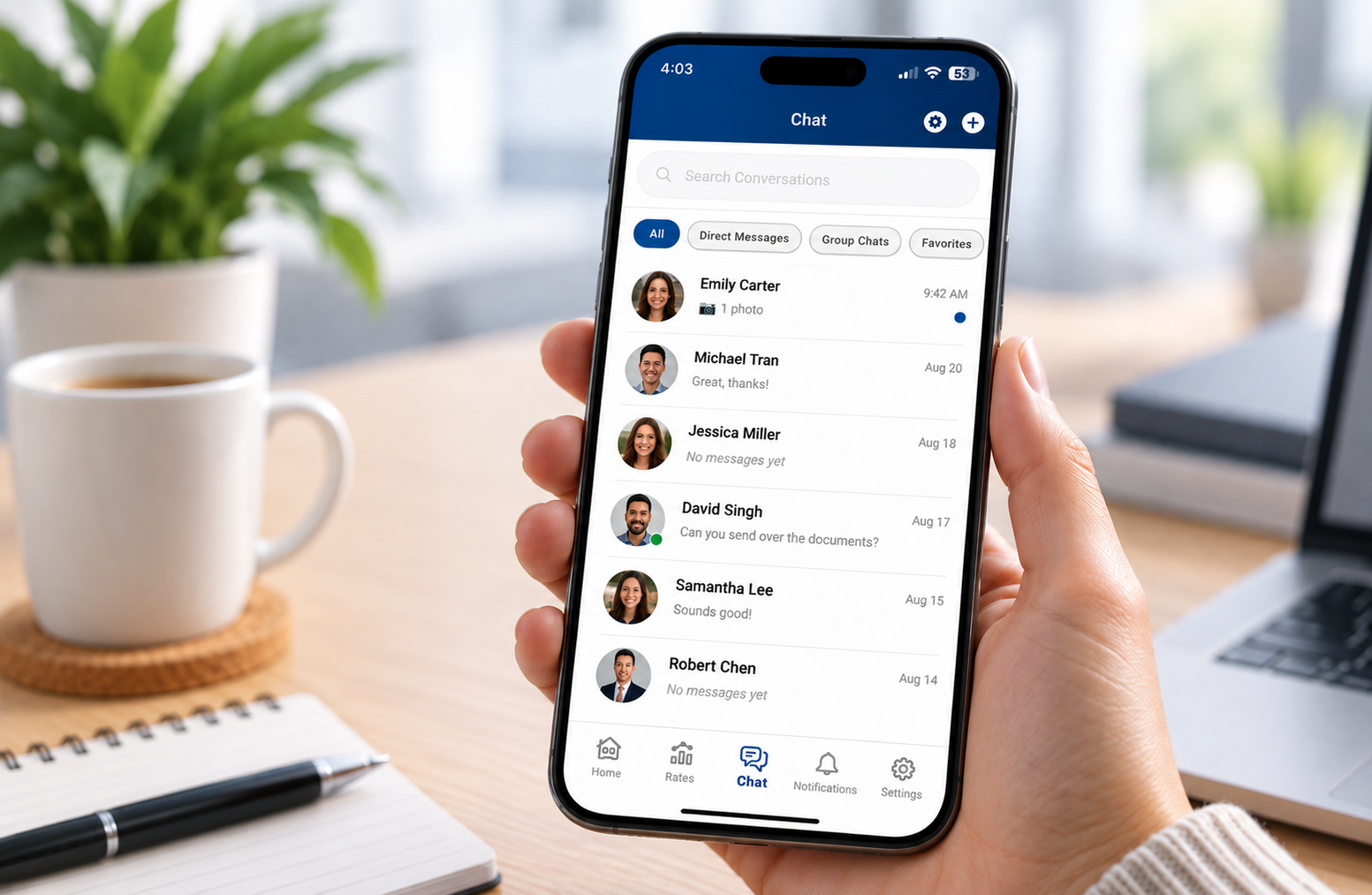
Client Chat keeps everything connected with direct messaging, automated updates, Deal Flows, and downloadable chat history for record-keeping and compliance.
Lead journey is a game-changer for the mortgage industry. Easy to share with Realtor partners so they can co-brand with you seamlessly, run lead generation ads on Facebook or Instagram easily to generate leads. What a great product for our industry.

Say Hello in Chat
Keep clients engaged and make your app
the centre of the mortgage relationship from start to close.
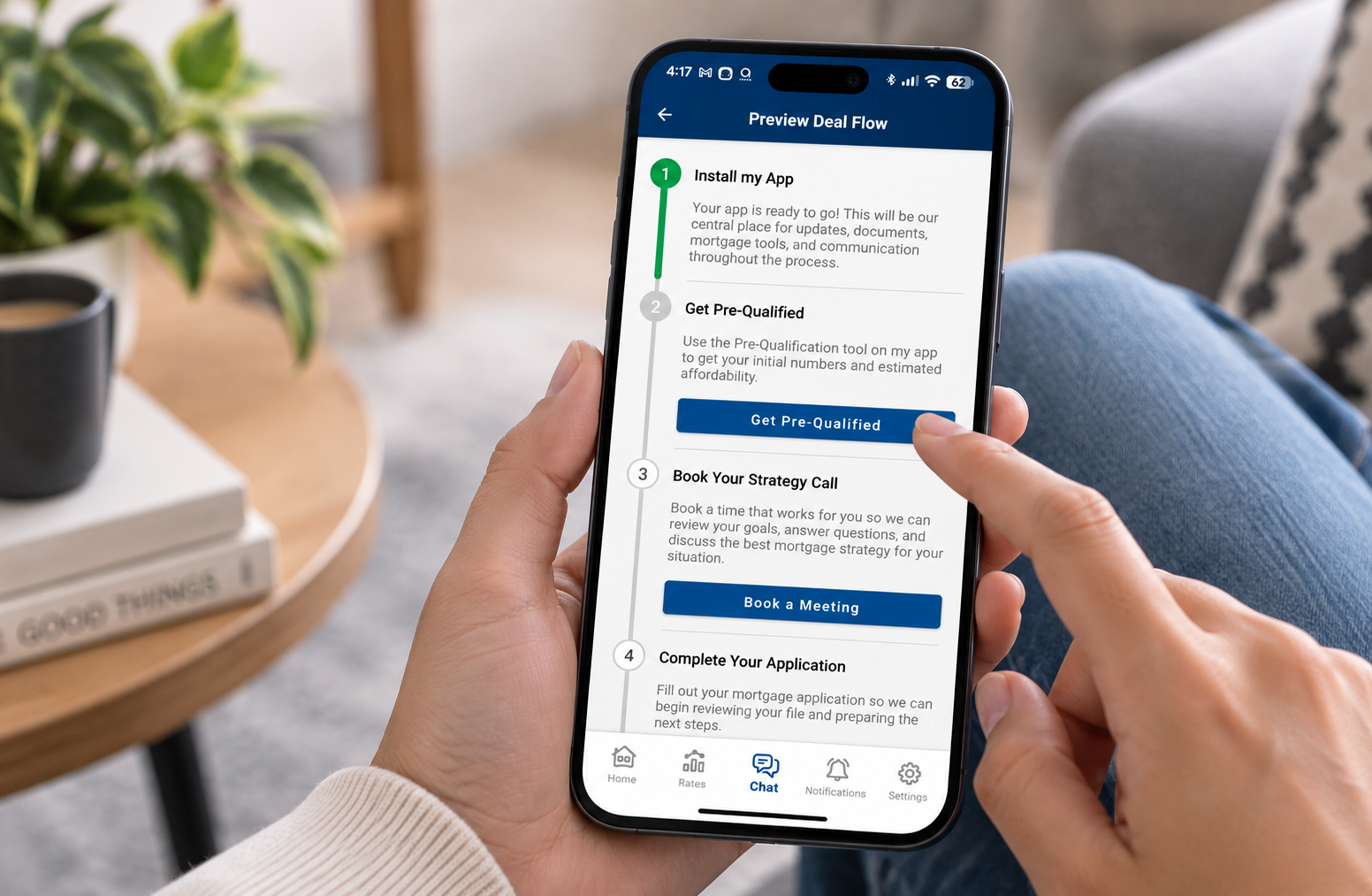
Deal Flows
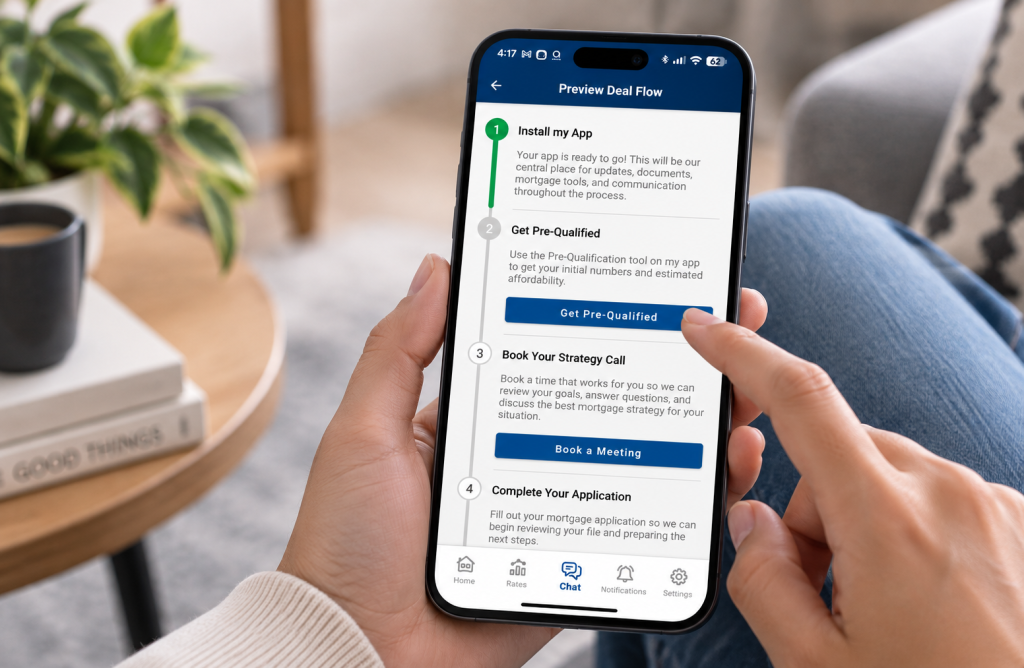
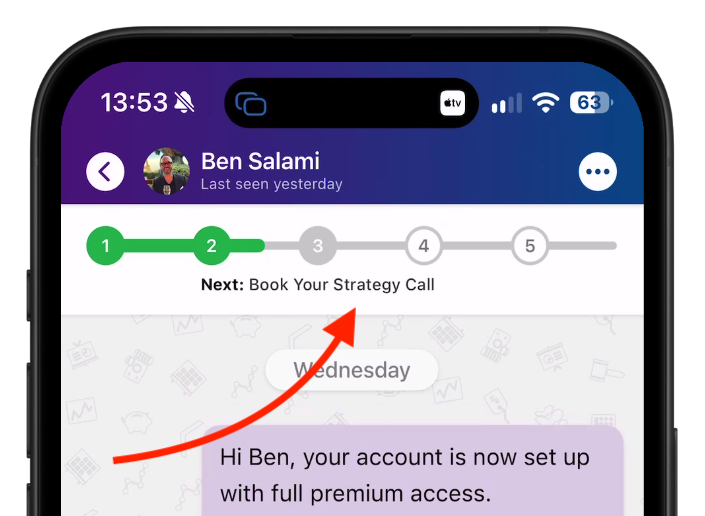
Guide clients with milestones, next steps and real-time progress so they always know what’s happening.
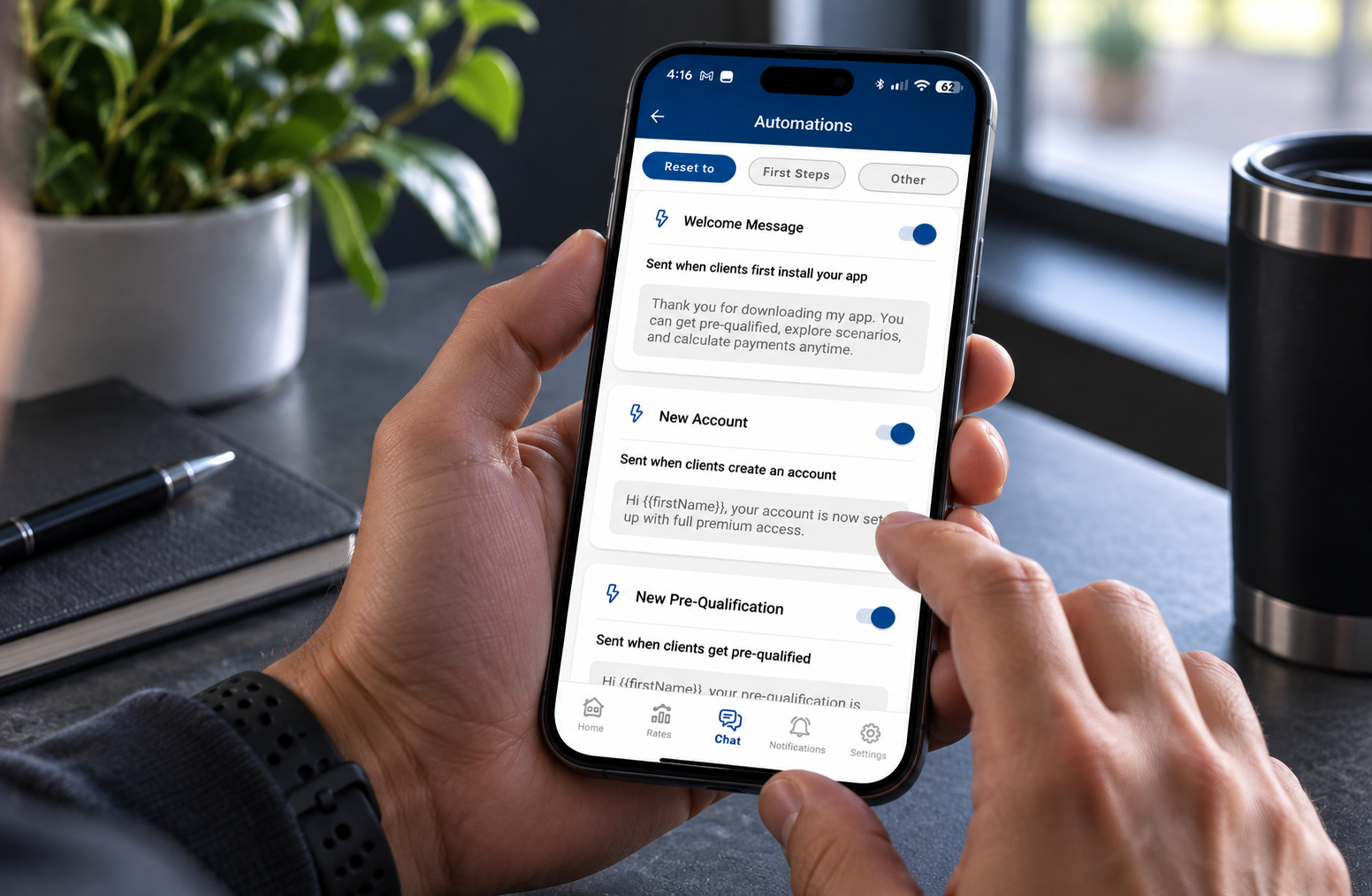
Automation
Automate key touchpoints to create a consistent client experience while reducing manual follow-up.
“The lead journey feature has been an excellent tool to collaborate with my referral partners on. Several of them added it to their newsletters. It’s also been a helpful tool to add to our website.”

"The recent addition: a quick 3-minute refinance review, has been a strong driver of engagement for us, generating new inquiries and funded mortgages after we added it to our newsletter."

Give clients a reason to keep coming back.
Your app doesn’t have to be something clients use once for a calculation. Chat turns it into an ongoing part of their mortgage journey, keeping clients engaged, guided, and connected to you from one milestone to the next.
Automate key touchpoints to create a consistent client experience while reducing manual follow-up.
Group Conversations
Keep everyone in the loop.
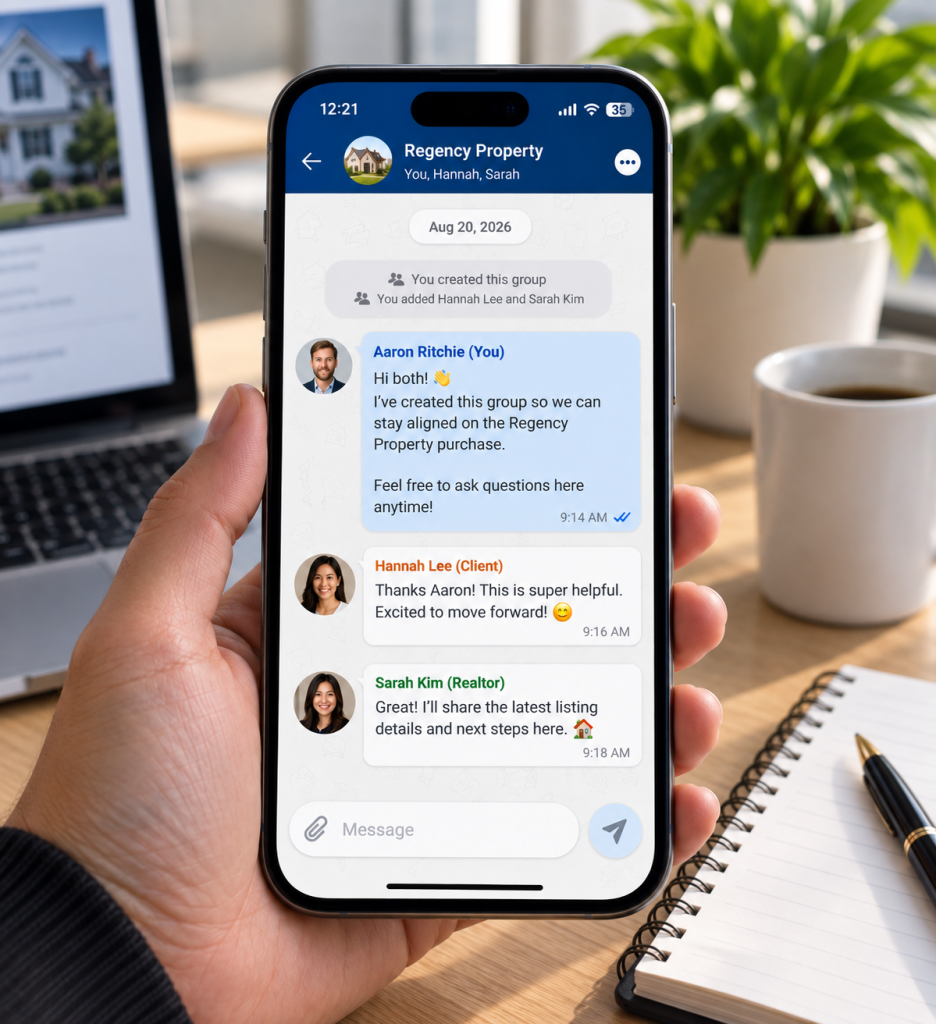
Bring clients, realtors, mortgage professionals and referral partners together in one shared conversation.
Downloadable Chat History
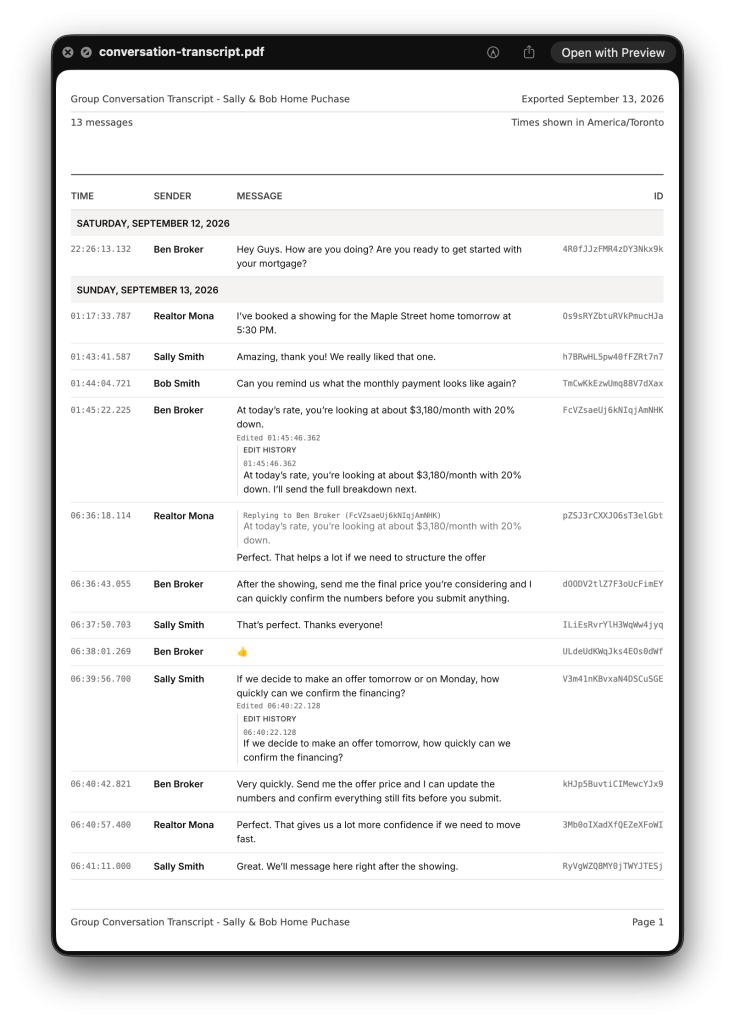
Your conversations. Always on record.
Keep a complete history of client communication for easier record-keeping, organization and compliance.
The Leads Journey has completely elevated the way I support my realtor partners. It gives them a smarter, more professional way to pre-screen buyers before they start showing homes, helping them avoid time spent with clients who aren’t financially ready. The co-branded experience also strengthens my broker–realtor partnerships by giving them a tangible, trackable tool they can confidently share with their client base. It’s a win for realtors, a big win for me, and ultimately a better experience for buyers.

Your process. Built into your app.
Create Deal Flows that match how you work, from Purchase to Refinance and beyond. Give every client a clear path forward without changing your process.
Deal Flows let you create custom journeys for your clients. You can then add the flow right into the conversation screen.
This helps them track their progress, see where they are in the journey, and plan to reach their next milestone.
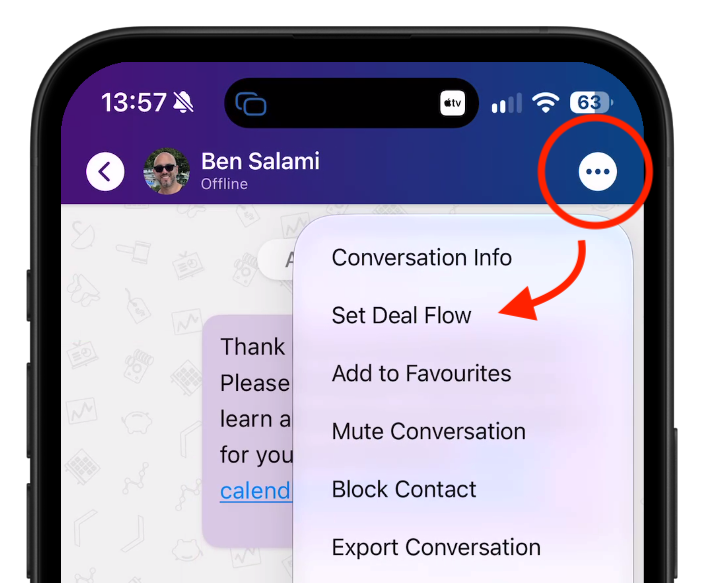
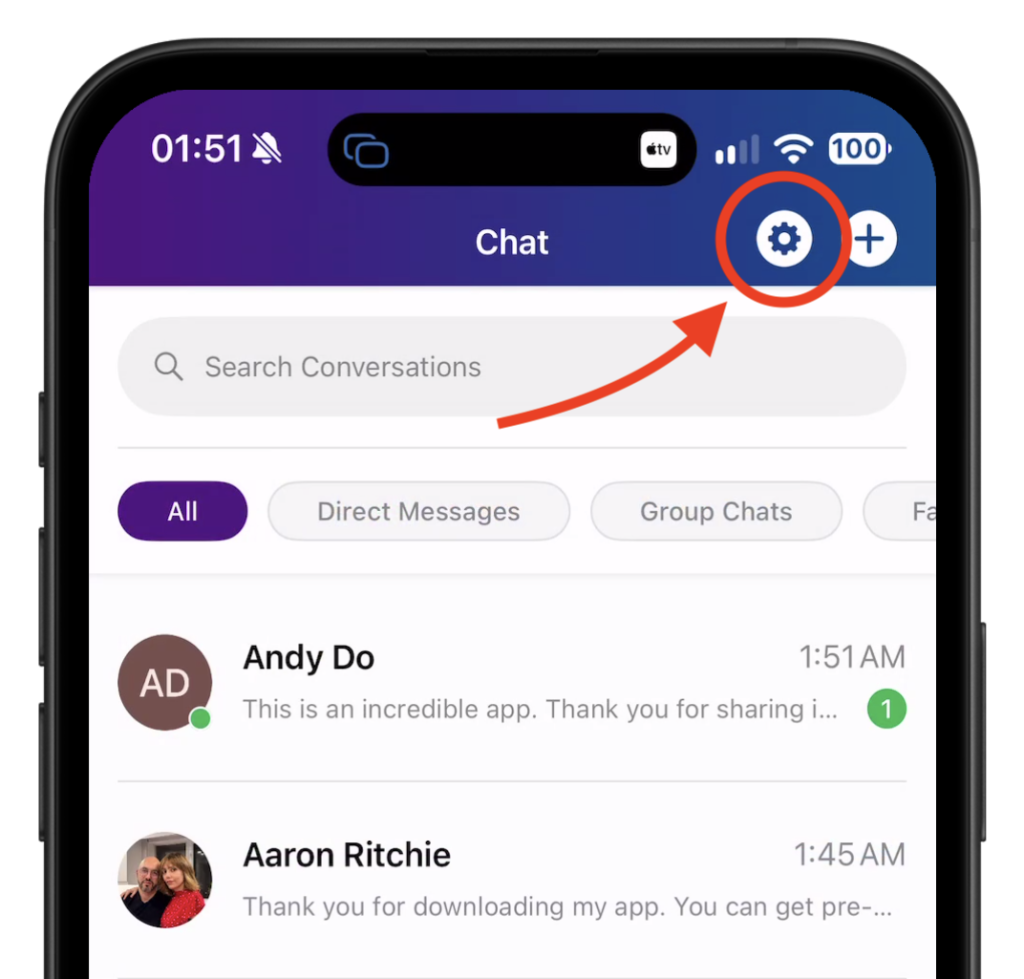
Access Deal Flow settings from the Chat Conversation List by tapping on the Gear Icon Or enable Deal Flows right from the Conversation Screen. So, during a conversation, you can set a deal flow from the menu.
How to build a Deal Flow?
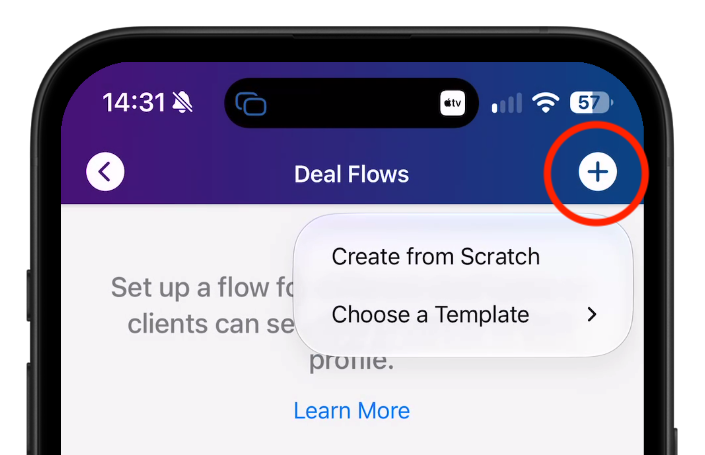
You have two options when creating a Deal Flow.
You can start with one of our pre-built templates and customize it, or build one from scratch.
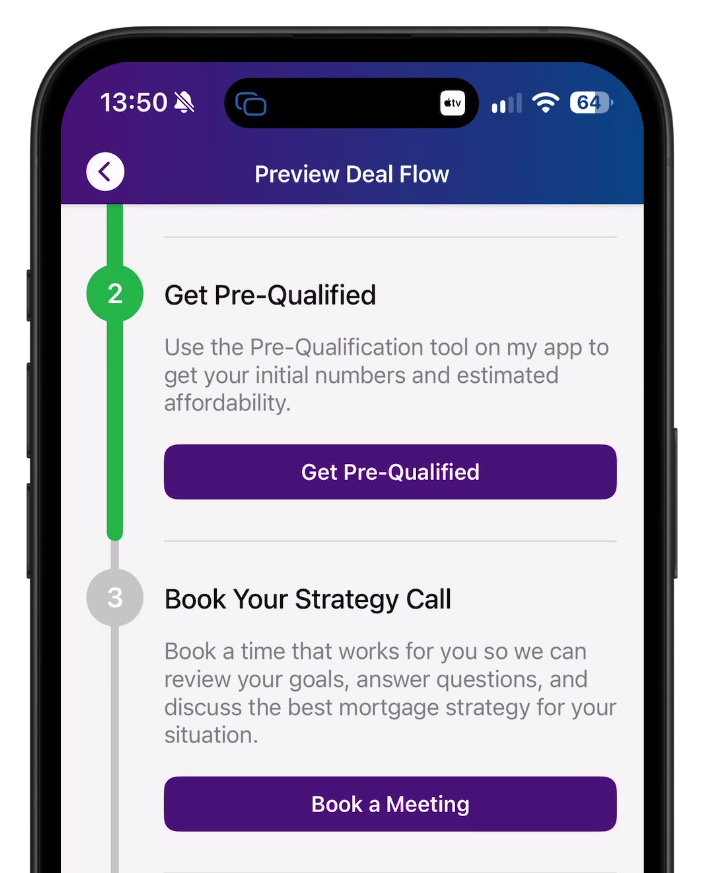
When building a Deal Flow from scratch, start by adding a series of steps, each with a title, description, and an optional call-to-action button.
Add a call-to-action button to each deal flow step so Clients know what to do.
Currently we support
Meeting Link (Book a Meeting)
Link to your Mortgage Application
Link to your Listings
Pre-Qualification
Custom URL
Automations
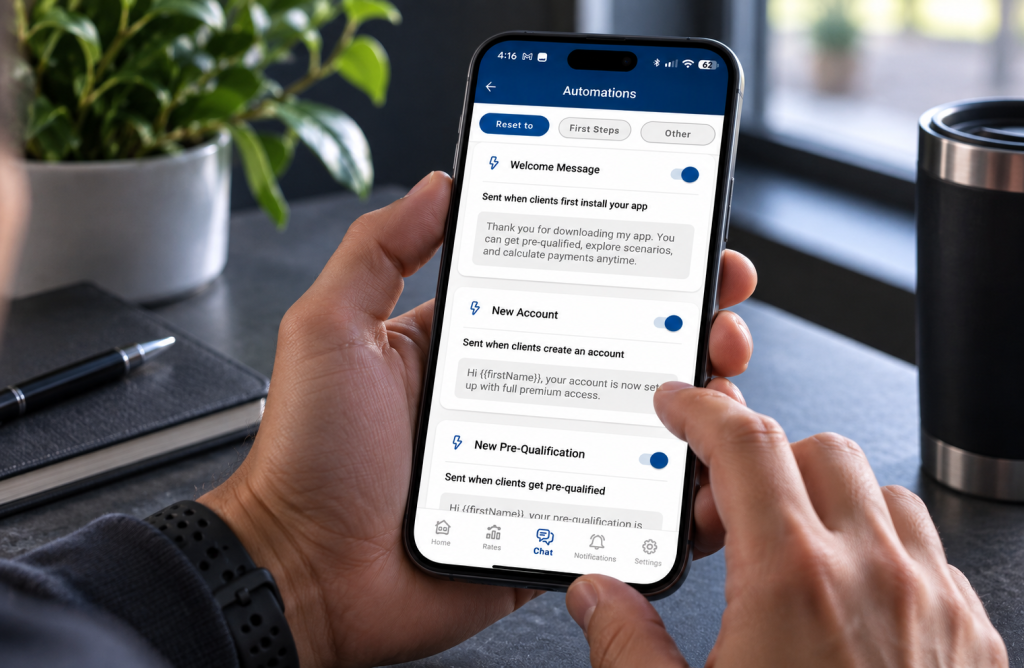
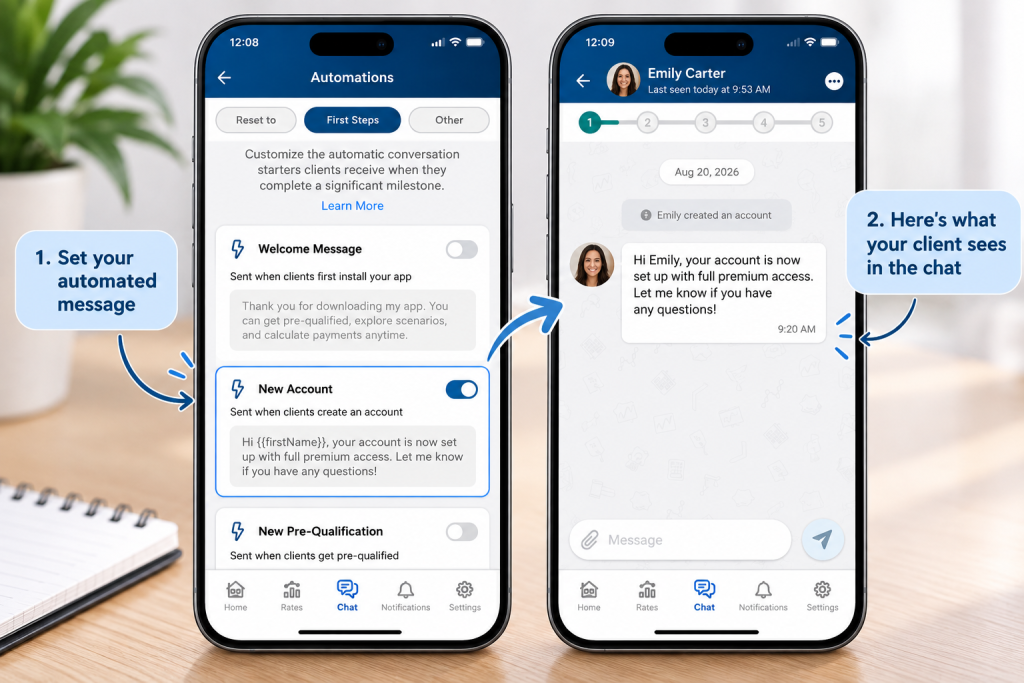
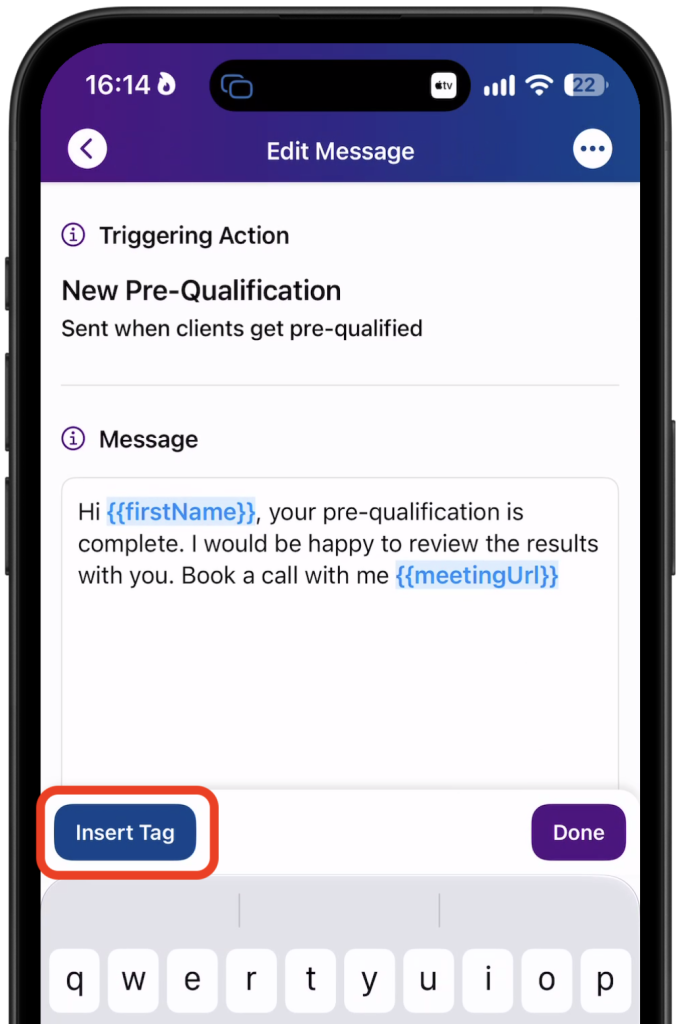
Chat Automations let you automatically send messages based on key client activities, like creating an account, completing a Pre-Qual, or creating a report.
This helps you stay connected at the right moments, keep clients engaged, and reduce the need to manually follow up.
How to set Automations
Tap the gear icon in the top-right corner to access User Settings, then tap Automations.
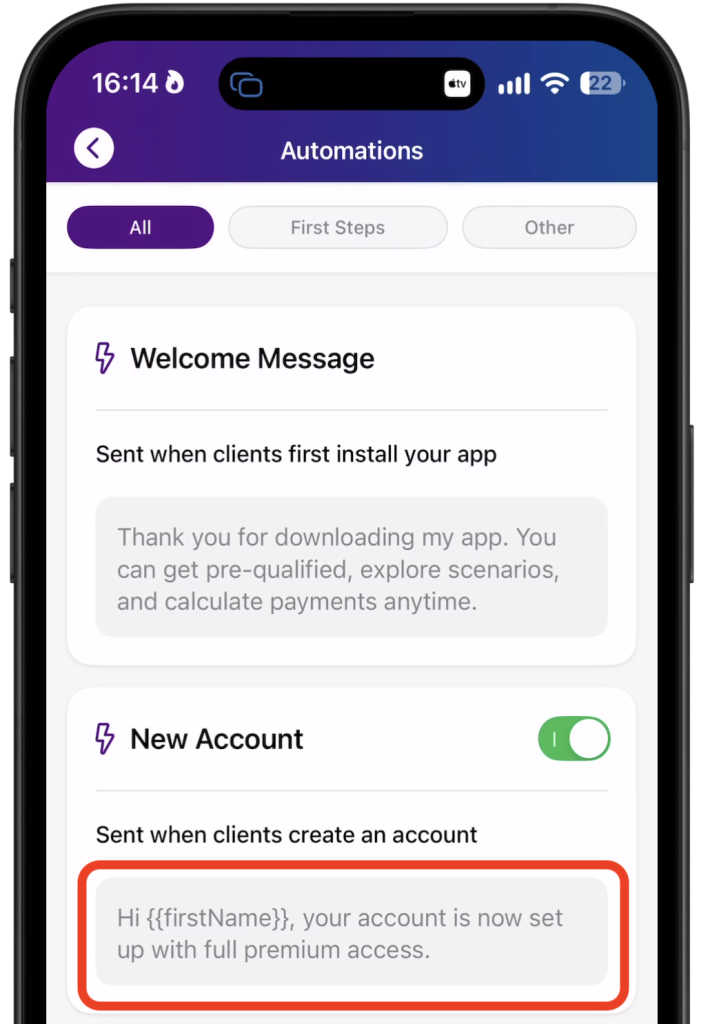
Automated messages are turned OFF by default. Use the toggle beside each message to turn it on or off at any time.
Tap the message you want to update. This will open the edit screen where you can customize the message.
Tap Insert Tag to automatically add details such as the client’s first name, Application link, and meeting link.
The values of the tags will be dynamically inserted when the message is sent
Once you’re finished editing, tap Save to apply your changes.